Real buildClaude's output, uneditedRecorded demo
I want AI to make me a Chrome extension
Five plain-English prompts made a word counter for Chrome: three files, two permissions, loaded with a few clicks. In real Chromium it passed 28 of 30 checks; its shortcut needed switching on.
- Prompts
- 5
- Claude's time
- 2 min 1 s
- Got wrong
- 3 things
- Tests passed
- 4 of 6
- Model
- claude-sonnet-5-5
- Run on
- 2 October 2026
For: Someone who wants one small, useful button in Chrome, has never made an extension and has never opened a terminal.
What the five prompts made The count

01 · Before you start
Before you start.
This one is different from the website builds. An extension doesn’t go on GitHub or Cloudflare and has no web address. It’s a folder of files that you load into Chrome on your own computer, by clicking. So no GitHub account and no Cloudflare account.
You need two things: a Claude account with “Code execution and file creation” switched on (Settings, then Capabilities; it’s on the Free plan), so Claude can hand you files, and Chrome. The set-up page covers the Claude part.
Our example is Ruth, who is made up. She writes short pieces for her village newsletter, each with a word limit, and she keeps pasting text into word counter websites. She wants to highlight text on any page, click a button and see the word count. She asked for the fewest permissions possible, each explained in plain English, nothing saved or sent anywhere, and large, clear writing. Change the details to yours, and keep that last part: it’s what makes a home-made extension safe to use.
02 · Set up once
Set up once, then just talk to Claude.
Free accounts you make one time and reuse for every build. Each links to the step-by-step on the set-up page, with what each screen looks like.
- 1. Get a free Claude account. It's where you describe what you want and Claude makes it. The Free plan covers every guide on this site; for websites, Pro adds the shortcut where Claude saves changes to GitHub itself.
- 2. Let Claude hand you files. Everything on this site is a handful of files: a website, an app, an extension. With this switched on, Claude can make them and give them to you to download.
03 · The prompts
Paste these five, in order.
Plain English, typed into an ordinary Claude chat. On the left, exactly what we sent, word for word; change the details to yours. On the right, what came back. One conversation with claude-sonnet-5-5, run on 2 October 2026. Read the full transcript.
Prompt 1 of 5
Describe the button you want, and say what it must not do.
You say: I'd like a small Chrome extension and I've never made one. I'm Ruth. I write short pieces for my village newsletter, and every piece has a word limit, so I'm forever pasting text into word counter websites. I'd like a button in Chrome: I highlight some text on any web page, click the button, and it tells me how many words I've highlighted. Some things that matter to me: - I don't want it reading every website I visit, saving anything or sending anything anywhere. It should only look at the page when I click the button. - Please keep the permissions it asks for to the bare minimum, and explain each one in plain English, so I know what I'm agreeing to. - Large, clear writing. My eyes aren't what they were. I'm not technical, and I don't want to install anything or use the terminal. Before you make anything, ask me anything you need to know, and tell me in plain English what you're going to make.
1,358 output tokens back · read the full reply
Prompt 2 of 5
Answer its questions and ask it to make it.
You say: Thanks, that sounds right. My answers: 1. A Windows laptop. 2. Yes, Chrome. 3. Yes, count it the way Word does. 4. Just the words for now. 5. Your plan for the size sounds good. A cream background would be easier on my eyes. 6. Not really, but a clear message instead of a confusing "0" would be kind. The same goes for when nothing is highlighted. Please call it "Ruth's Word Counter" and make it now. Keep it as simple as possible: just the files I'll need, nothing to install. Tell me which files you made and what each one is for.
2,761 output tokens back · read the full reply
Prompt 3 of 5
Ask it to check its work like someone trying to break it.
You say: Before I put it into Chrome, please check your work carefully, as if you were trying to find mistakes: what happens if I click it on a page where it isn't allowed to run, if nothing is highlighted, if I highlight a huge amount of text, or text with odd spacing, numbers or hyphenated words. Check too that it's easy to read and that someone using only a keyboard or a screen reader could use it. Tell me in plain English what you found, then fix it in the files.
6,156 output tokens back · read the full reply
Prompt 4 of 5
Change something, the way you will once you're using it.
You say: It's working nicely. One change, please: the online form for the newsletter counts characters, not words, so I'd like it to show the number of characters as well, under the words. Then tell me which files you changed, and what I need to do in Chrome so it uses the new version.
2,764 output tokens back · read the full reply
Prompt 5 of 5
Ask how to put it into Chrome by clicking, and how a friend could get it.
You say: I've downloaded all the files into one folder on my computer. I don't want to use the terminal or install anything. Please tell me, step by step, how I get it into Chrome on my own computer by clicking, what I should see at each step, and how I put a change in later (like the characters). My friend Jean would like it too. Could I put it on the Chrome Web Store so she can install it? What would that involve, and does it cost anything?
1,858 output tokens back · read the full reply
After prompt 1 of 5
Reply to prompt 1 · 12.8 s · 1,358 output tokens
Describe the button you want, and say what it must not do.
A plan and some questions, and nothing made yet. Ours planned a toolbar button that only looks at the page when you click it, saves nothing and sends nothing, asked for two permissions and explained each (activeTab: only the page you're on, only after you click; scripting: fetch the highlighted text from it), and asked six questions, including how to count words.
04 · The result
The real thing, on the stage.
Screenshots of exactly what Claude produced, running on our machine on 2 October 2026. Nothing retouched.
We typed five plain-English prompts into one conversation with claude-sonnet-5-5 on 2 October 2026. One caveat: we ran them through Anthropic’s command-line tool with only its file tools switched on, which works like file creation on claude.ai, but it wasn’t the claude.ai website itself, so your screen will look different. The replies are published as they came back and we edited nothing by hand. Claude spent 120.8 seconds writing them.
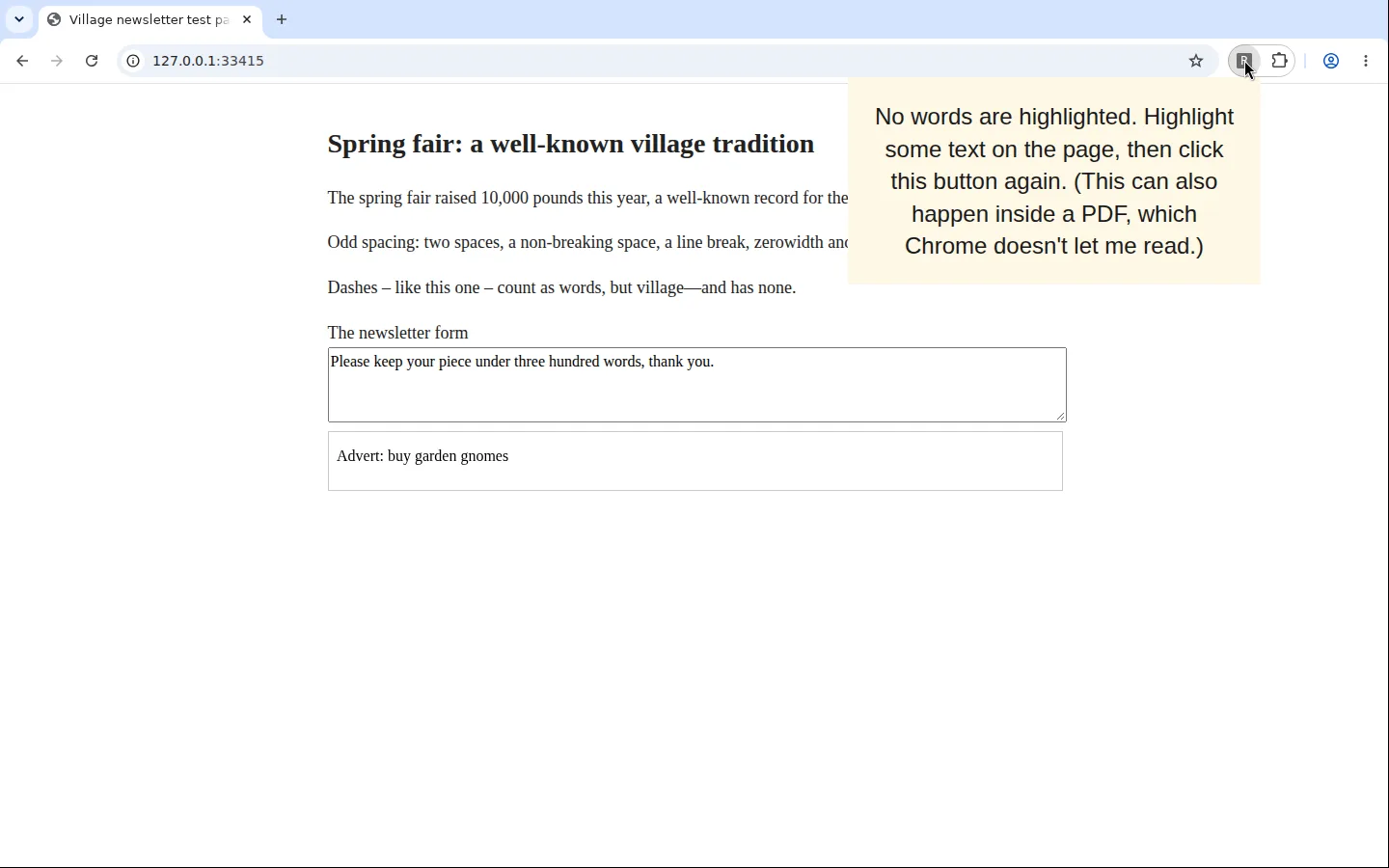
The first prompt described the idea, and Claude made nothing yet. It planned a toolbar button that only looks at the page when you click, saves nothing and sends nothing. It proposed two permissions and explained them: “activeTab” lets it look at the page you’re on, only after you click, only that page, and it ends when you move on; “scripting” lets it fetch the highlighted text from that page. Then it asked six questions, including which computer, which browser and how to count words. It suggested Word’s way, so “well-known” is one word and “10,000” is one word.
The second prompt answered them: Windows, Chrome, count like Word, just words, a cream background, and a kind message instead of a “0”. Claude saved three files, manifest.json, popup.html and popup.js. It made no icon, so Chrome showed a grey “R”, and it said it hadn’t tried any of it in Chrome.
The third prompt asked it to check its work like someone hunting for mistakes. It made the result read out to screen readers, gave very long numbers smaller type, stripped invisible characters before counting, added a fallback for embedded parts of a page it isn’t allowed into, and added a keyboard shortcut, Alt+Shift+W. Again, it said it had checked by reading the code, not in Chrome.
The fourth prompt was a change: a character count under the words. Claude changed all three files, called it version 1.2, and said how to make Chrome use the new version.
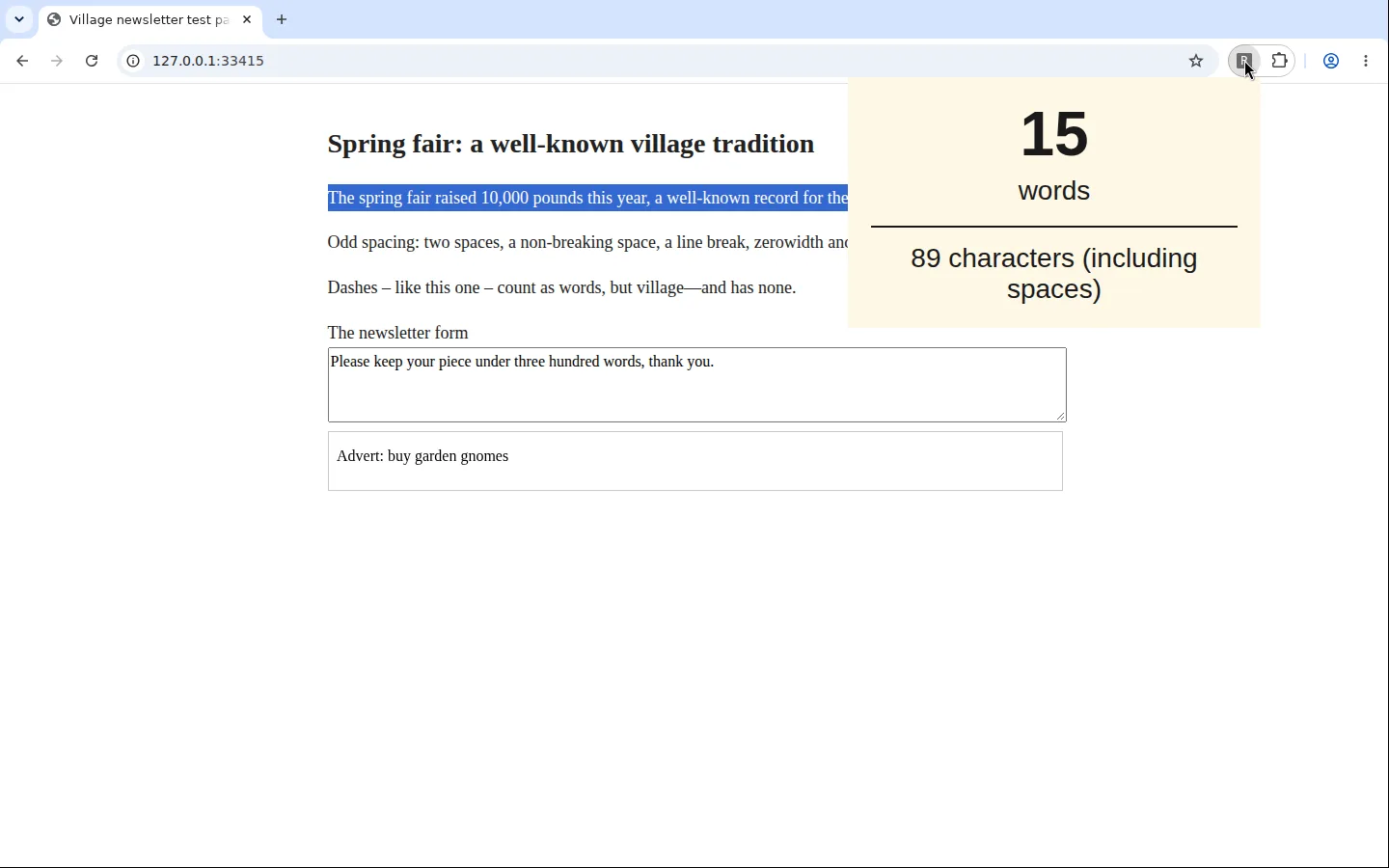
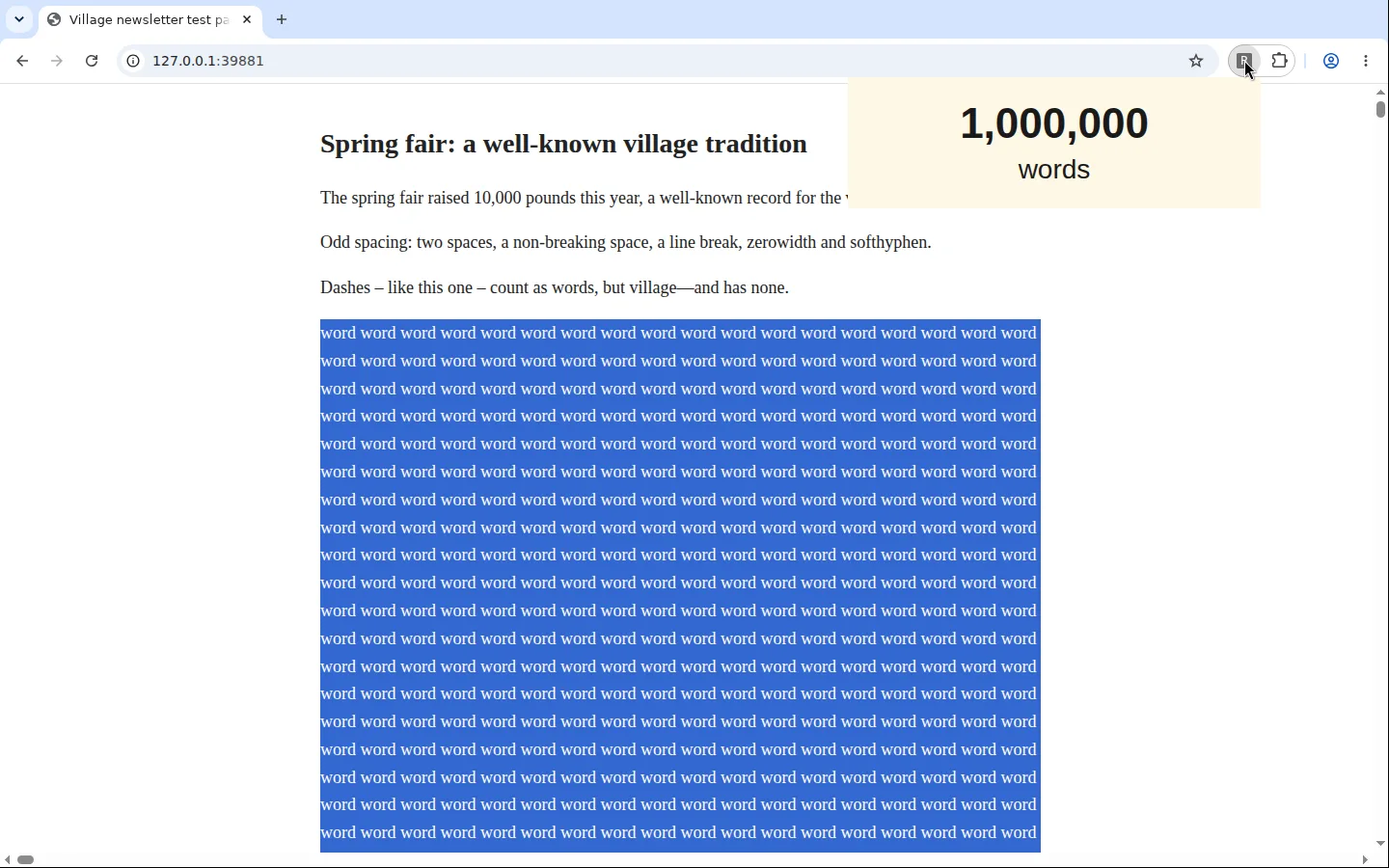
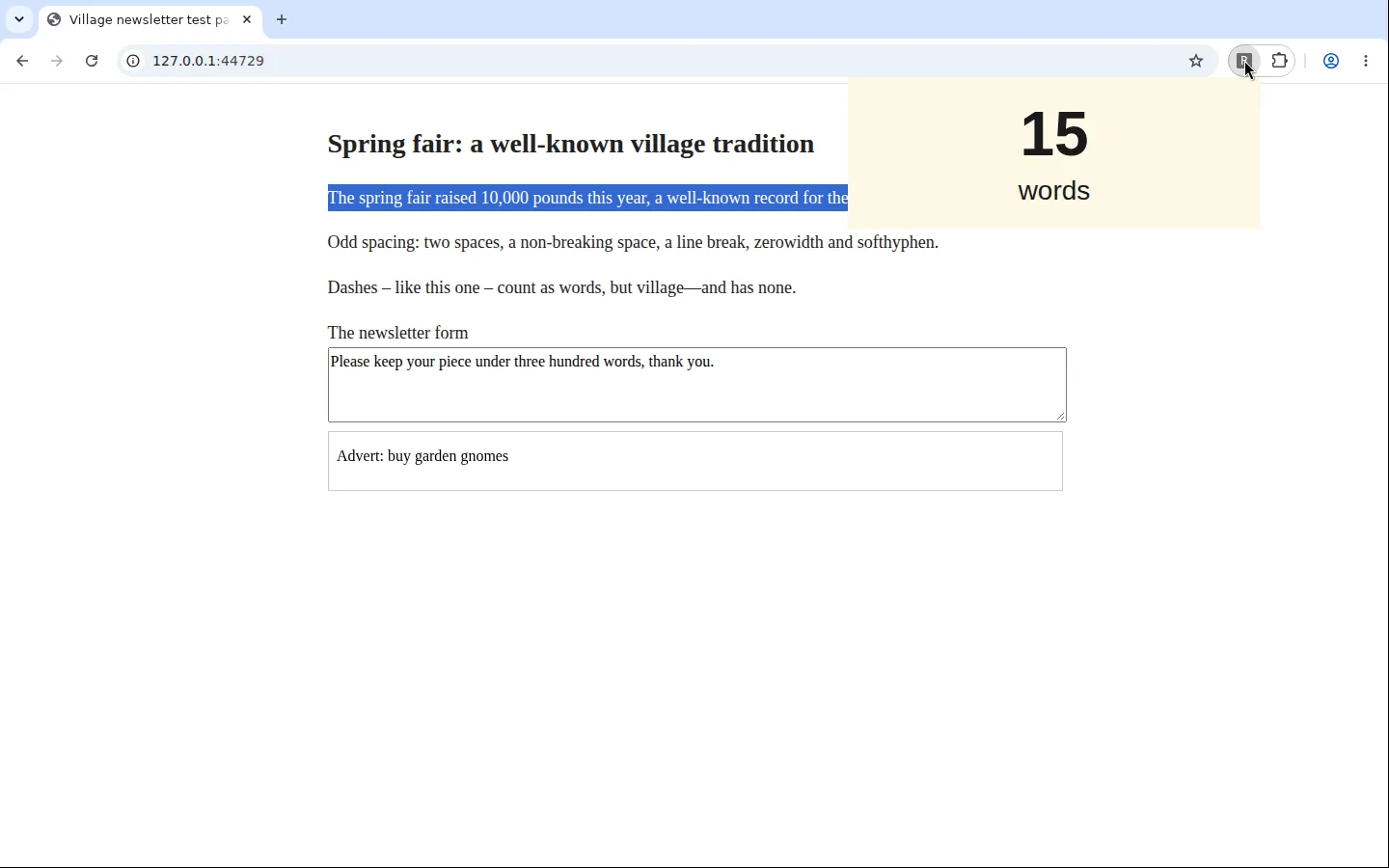
So we tried it in Chrome ourselves. We loaded Claude’s unedited files into Chromium (Chrome for Testing 153) as an unpacked extension, in a real window on a virtual screen, pinned the button, and opened it with real mouse clicks, on a test page of our own with a form box and an embedded frame from another address. The final files passed 28 of 30 checks. A highlighted sentence came out at 15 words and 89 characters. Tabs, a non-breaking space and invisible characters didn’t throw it: 13 words. Text highlighted inside a form box gave 10. A million highlighted words showed 1,000,000 and still fitted the box. With nothing highlighted you get the kind message, and on a Chrome settings page you get “Sorry, Chrome doesn’t let me read this page.”
It kept to its word on privacy, too: only activeTab and scripting, no standing access to any website, nothing running in the background, and no requests to other websites during the test.
The two failures were the keyboard shortcut. Alt+Shift+W did nothing after loading: Chrome’s shortcuts page listed it but reported it as not active. Once we set it there ourselves it worked. The first version, from prompt 2, passed 22 of 23 checks; its one miss was the screen reader announcement, which prompt 3 added.
The fifth prompt asked how to get it into Chrome by clicking, and how Ruth’s friend Jean could have it. Claude’s steps matched Google’s documentation. It offered two ways to share: email Jean the files in a zip, or publish on the Chrome Web Store, and it recommended the zip for one friend.
Not hosted: an extension isn't a web page; it runs inside Chrome on your own computer. Claude's unedited files are listed under For developers.
manifest.json
popup.html
popup.js
05 · What we tested
We tried to break it. 4 of 6 held.
Run on our own machine against the unedited files. Nothing deployed while testing.
| What we tried | What happened | Result |
|---|---|---|
| Prompt 4 files loaded unpacked into Chromium (Chrome for Testing 153), every click a real mouse click on the pinned button: counting | Right every time: a sentence (15 words, 89 characters; '10,000' and 'well-known' one word each), tabs, a non-breaking space and invisible characters (13 words), spaced dashes (13), text highlighted in a form box (10), and a million words (1,000,000, still fits the box) | Pass |
| Nothing highlighted, and a Chrome settings page | The kind 'No words are highlighted' message, and 'Sorry, Chrome doesn't let me read this page' instead of a confusing 0 | Pass |
| What it can reach | Only activeTab and scripting: no standing access to any website, nothing that runs by itself on pages or in the background, nothing saved, and no requests to other websites during the test | Pass |
| Easy to read, and usable with a screen reader | Text contrast 16.44:1 (the WCAG AA minimum is 4.5:1), smallest text 28px, and the result is announced to screen readers | Pass |
| The Alt+Shift+W shortcut Claude added in prompt 3 | Did nothing after loading: Chrome's shortcuts page listed it but reported it as not active. Once we set it there (the pencil, then the keys) it opened the count. These are the 2 failures in our 30 checks | Fail |
| Prompt 2 first version, same checks | 22 of 23: the count wasn't announced to screen readers. Prompt 3 fixed it | Fail |
06 · Ship it
Put it in Chrome, no terminal.
No GitHub and no Cloudflare this time: an extension runs inside Chrome on your own computer. These clicks follow Google's documentation and what we saw in our test, so the names are Chrome's.
There’s no live demo to open, because an extension isn’t a web page: Claude’s three files are at the bottom of this page, under “For developers”, if you want to compare them with yours.
- Download the three files Claude made, manifest.json, popup.html and popup.js, into one folder. If they arrive in a zip, right-click it and choose Extract All. Keep the folder somewhere it can stay, such as Documents: Chrome reads the extension from it.
- Open a new tab in Chrome, type chrome://extensions into the address bar and press Enter. You should see a page called Extensions.
- Switch on Developer mode, the toggle at the top right. New buttons appear: Load unpacked, Pack extension and Update.
- Select Load unpacked, pick your folder (select it once, don’t open it), then Select Folder. A card for Ruth’s Word Counter appears, showing version 1.2. If it shows an Errors button, the folder is probably the wrong one or missing a file.
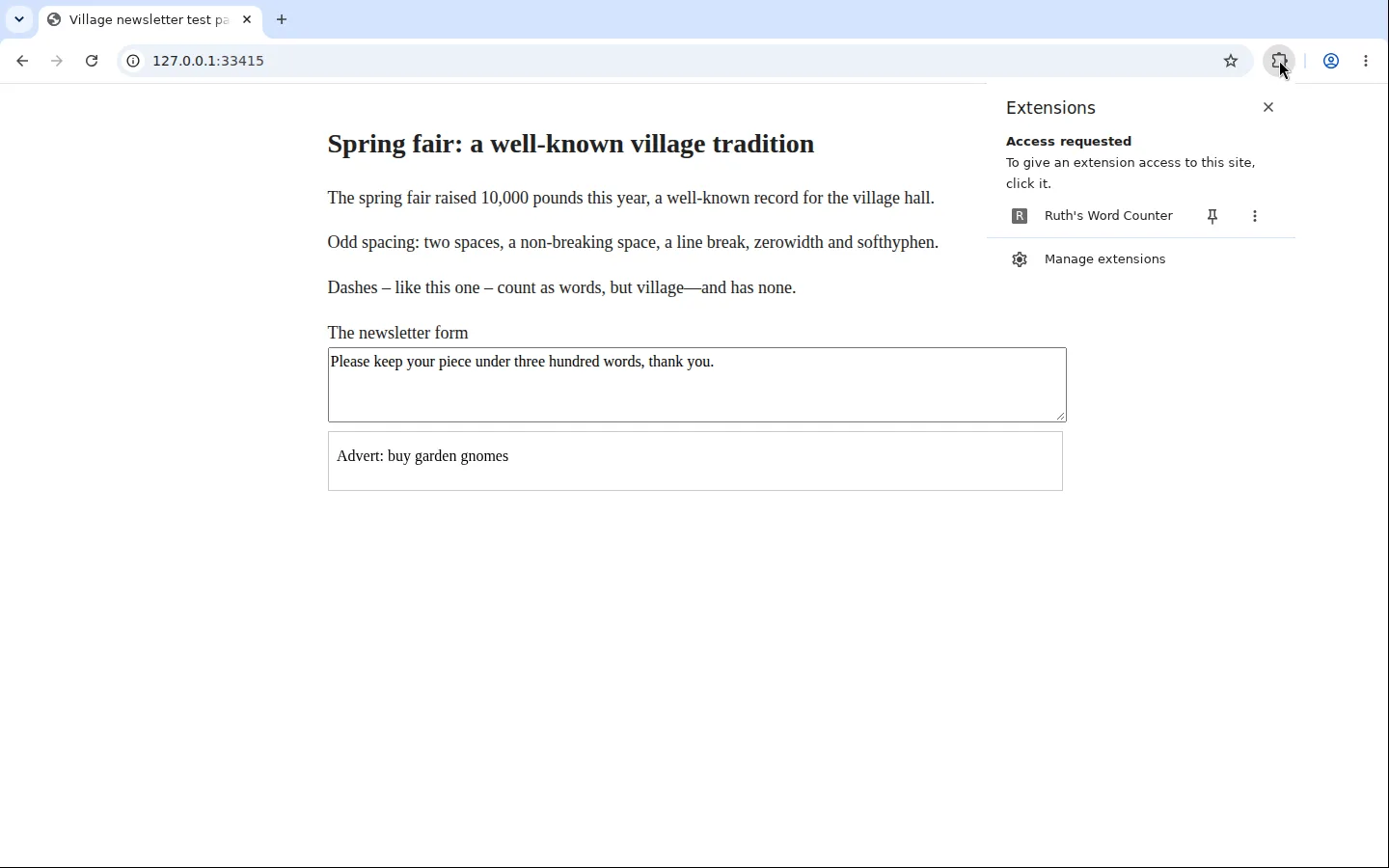
- Select the puzzle-piece icon at the top right of Chrome, then the pin next to Ruth’s Word Counter. Its button now sits on the toolbar.
- Highlight some text on any web page and select the button. A cream box shows the count.
- To put a change in later, ask Claude in the same chat, save the files it changed over the old ones in the same folder, then on chrome://extensions select the reload arrow on the extension’s card. The version number on the card tells you the new one is in.
- Want the keyboard shortcut? Go to chrome://extensions/shortcuts, select the pencil next to “Activate the extension” and press the keys you want. Ours needed this before Alt+Shift+W did anything.
Claude also said Chrome may sometimes warn at start-up that you have a developer-mode extension, and to keep it. We didn’t see that in our test and haven’t checked it.
Sharing it, or putting it on the Chrome Web Store
For one or two friends, Claude’s suggestion is the simplest: put the three files in a zip, email it, and they follow the same steps. Changes mean sending the new files and asking them to select reload.
For one-click installs and automatic updates, there’s the Chrome Web Store. Google’s documentation says you register as a developer and pay a one-time registration fee, verify a contact email and choose a publisher name, which shows under the extension. Your Google account needs 2-Step Verification before you can publish. Then you zip the files, select Add new item in the Developer Dashboard and upload the zip, and fill in the Store Listing, the Privacy tab (the extension’s single purpose and how it handles data) and Distribution, where it can be public, unlisted or private. Google reviews it before it goes live: “within a few days, but it can take up to a few weeks”, longer for new developers and for extensions that ask for broad permissions. Claude offered to make the icon and write the description and the form answers, which are the parts it can do for you.
07 · What it costs
What it costs.
£0 to make it and use it yourself: Claude's Free plan and Chrome. Publishing on the Chrome Web Store is optional and has a one-time registration fee.
Nothing to make it and use it yourself. Claude’s Free plan covered everything here, and Chrome is free.
The only possible cost is the Chrome Web Store’s one-time registration fee, and only if you choose to publish. Claude said it’s $5; the Google pages we read don’t give the amount, so check it when you register.
08 · What it got wrong
3 things Claude got wrong, or left to you.
If Claude gets something wrong, we say so here. We never fix its files by hand; a fix is a follow-up prompt you can see above.
The keyboard shortcut wasn't switched on
Claude added Alt+Shift+W and said that if another program already used it, Chrome would leave it unassigned. Ours was the only extension installed, and the shortcut still wasn't active until we set it on chrome://extensions/shortcuts. Google's documentation says a suggested shortcut won't register if another extension already uses it. Clicking the button always worked.
Pages saved on your computer
Claude said a page saved on your computer would show the 'Sorry' message unless you changed a setting. In our test it counted fine there: Chrome had 'Allow access to file URLs' switched on for the extension we'd loaded unpacked.
The store fee
Claude said publishing on the Chrome Web Store costs a one-time $5 (about £4). Google's pages say there is a one-time registration fee but, in the ones we read, don't give the amount. Check it when you register.
Ours, disclosed
Built it? Where we can help next.
Ours: made by the same studio that runs this site. None of them changes anything above.
Ours
Adapt Progress Evolve
The UK studio that runs this site, if you'd rather talk to someone about building one for you.
Questions
Questions people ask.
Can AI make a Chrome extension for me?
Yes, a small one, in our run. Five plain-English prompts in a conversation with Claude made a working word counter: three files, two permissions, a cream box with large text. We loaded Claude's files, unedited, into Chromium and it counted correctly in every test; the one thing that didn't work straight away was its keyboard shortcut.
How do I make a Chrome extension with AI if I can't code?
Describe the button you want in a Claude chat and ask it to ask you questions first. Answer them, ask it to make the files, then ask it to check its work as someone trying to break it. Download the files into one folder, then in Chrome go to chrome://extensions, switch on Developer mode, select Load unpacked and pick the folder. No terminal, nothing to install.
Do I have to publish it on the Chrome Web Store?
No. Load unpacked puts it in your own Chrome for free, and you can email a friend the folder as a zip to load the same way. The store is only for one-click installs and automatic updates: Google asks for a one-time registration fee, 2-Step Verification on your Google account, a store listing and a privacy form, then reviews it, usually within a few days.
Is a Chrome extension made by AI safe to install?
Look at what it asks for. Ask Claude for the fewest permissions and a plain-English explanation of each, as we did. Ours used only activeTab, which reaches the page you're on only after you click and ends when you leave, and scripting, which lets it fetch the highlighted text. Google says neither shows an install warning. In our test it made no requests to other websites.
How do I change the extension later?
Ask Claude in the same chat and have it tell you which files changed. Save them over the old ones in the same folder, then on chrome://extensions select the reload arrow on the extension's card. You don't need to load it again.
Sources for this page
10- Claude help: create and edit files with Claude (all plans; Settings > Capabilities)
- Chrome for Developers: Hello World extension (chrome://extensions, Developer mode, Load unpacked, reload, pin)
- Chrome for Developers: the activeTab permission (no install warning; ends when you leave the page)
- Chrome for Developers: permissions list (activeTab and scripting show no warning)
- Chrome for Developers: commands (keyboard shortcuts; chrome://extensions/shortcuts)
- Chrome Web Store: register your developer account (one-time registration fee)
- Chrome Web Store: set up your developer account (verified contact email, publisher name)
- Chrome Web Store: program policies (2-Step Verification required to publish)
- Chrome Web Store: publish (zip, Developer Dashboard, Store Listing, Privacy, Distribution)
- Chrome Web Store: review process (usually a few days, up to a few weeks)
For developers
For developers.
Skip this if you've never used a terminal. You don't need it.
How it works, and how we tested it
What Claude built is a Manifest V3 extension with an action popup and no background service worker. The popup calls chrome.scripting.executeScript on the active tab with allFrames: true, falls back to the top frame if that throws, and returns getSelection() (or the selected part of a focused input or textarea). activeTab grants host access only when the action is invoked, so there are no host_permissions and no content scripts. The shortcut is a commands entry for _execute_action.
How we tested it: Playwright’s Chromium (Chrome for Testing 153), headed under Xvfb, launched with --load-extension. Clicks and key presses went through the X server (XTest), so Chrome treated them as user gestures and granted activeTab, exactly as a real click does. Playwright doesn’t list an extension’s toolbar popup as a page, so we read it over the DevTools protocol.
The three files, exactly as Claude wrote them after prompt 4 (popup.js contains invisible characters inside its two regular expressions, which don’t show here):
json
{
  "manifest_version": 3,
  "name": "Ruth's Word Counter",
  "version": "1.2",
  "description": "Highlight some text, click the button, and see how many words you highlighted. Only looks at the page when you click.",
  "permissions": ["activeTab", "scripting"],
  "action": {
    "default_title": "Count my highlighted words",
    "default_popup": "popup.html"
  },
  "commands": {
    "_execute_action": {
      "suggested_key": { "default": "Alt+Shift+W" },
      "description": "Count my highlighted words"
    }
  }
}
html
<!DOCTYPE html>
<html lang="en">
<head>
  <meta charset="utf-8">
  <title>Ruth's Word Counter</title>
  <style>
    body {
      width: 380px;
      margin: 0;
      padding: 24px;
      background: #FFF8E7;
      color: #1A1A1A;
      font-family: Verdana, Arial, sans-serif;
      text-align: center;
    }
    #number {
      font-size: 64px;
      font-weight: bold;
      line-height: 1.1;
    }
    #number.smaller { font-size: 44px; }
    #label {
      font-size: 28px;
      margin-top: 8px;
    }
    #chars {
      font-size: 28px;
      margin-top: 20px;
      padding-top: 16px;
      border-top: 2px solid #1A1A1A;
    }
    #message {
      font-size: 24px;
      line-height: 1.4;
    }
    .hidden { display: none; }
  </style>
</head>
<body>
  <!-- role="status" makes a screen reader read out whatever appears here. -->
  <main role="status" aria-live="polite" aria-atomic="true">
    <div id="result" class="hidden">
      <div id="number"></div>
      <div id="label"></div>
      <div id="chars"></div>
    </div>
    <div id="message">Counting…</div>
  </main>
  <script src="popup.js"></script>
</body>
</html>
js
// Runs only when Ruth clicks the toolbar button (or uses the keyboard shortcut).
// Reads the highlighted text on the current page, counts the words, shows the number.
// Nothing is saved and nothing is sent anywhere.
const resultBox = document.getElementById("result");
const numberEl = document.getElementById("number");
const labelEl = document.getElementById("label");
const charsEl = document.getElementById("chars");
const messageEl = document.getElementById("message");
function showMessage(text) {
resultBox.classList.add("hidden");
messageEl.classList.remove("hidden");
messageEl.textContent = text;
}
function showCount(count, charCount) {
messageEl.classList.add("hidden");
resultBox.classList.remove("hidden");
const text = count.toLocaleString();
numberEl.textContent = text;
// Very long numbers (over a million) get slightly smaller type so they still fit.
numberEl.classList.toggle("smaller", text.length > 7);
labelEl.textContent = count === 1 ? "word" : "words";
charsEl.textContent = charCount.toLocaleString() + (charCount === 1 ? " character" : " characters") + " (including spaces)";
}
// This small function is run inside the page to fetch the highlighted text.
function getHighlightedText() {
const active = document.activeElement;
if (active && (active.tagName === "TEXTAREA" || active.tagName === "INPUT")) {
try {
const part = active.value.substring(active.selectionStart, active.selectionEnd);
if (part) return part;
} catch (e) { /* some input types don't allow this */ }
}
return window.getSelection().toString();
}
// Counts words the way Word does: anything separated by spaces, tabs or line breaks.
// "well-known" is one word, "10,000" is one word.
function countWords(text) {
// Remove invisible characters that some websites hide inside text,
// so they are never mistaken for words.
const cleaned = text.replace(/[-]/g, "").trim();
return cleaned === "" ? 0 : cleaned.split(/\s+/).length;
}
// Counts every visible character, including spaces and punctuation.
// Spaces at the very start or end of the highlight are ignored.
function countCharacters(text) {
const cleaned = text.replace(/[-]/g, "").trim();
return Array.from(cleaned).length;
}
async function main() {
try {
const [tab] = await chrome.tabs.query({ active: true, currentWindow: true });
let results;
try {
// First try every part of the page, including embedded frames.
results = await chrome.scripting.executeScript({
target: { tabId: tab.id, allFrames: true },
func: getHighlightedText
});
} catch (e) {
// If an embedded part is off-limits, fall back to the main page only.
results = await chrome.scripting.executeScript({
target: { tabId: tab.id },
func: getHighlightedText
});
}
// Use the first part of the page that has some highlighted text.
const found = results.map(r => r.result || "").find(t => t.trim() !== "");
if (!found) {
showMessage("No words are highlighted. Highlight some text on the page, then click this button again. (This can also happen inside a PDF, which Chrome doesn't let me read.)");
return;
}
showCount(countWords(found), countCharacters(found));
} catch (error) {
showMessage("Sorry, Chrome doesn't let me read this page. Try a normal web page, not a Chrome settings page, the Chrome Web Store, or a PDF.");
}
}
main();